
Overview
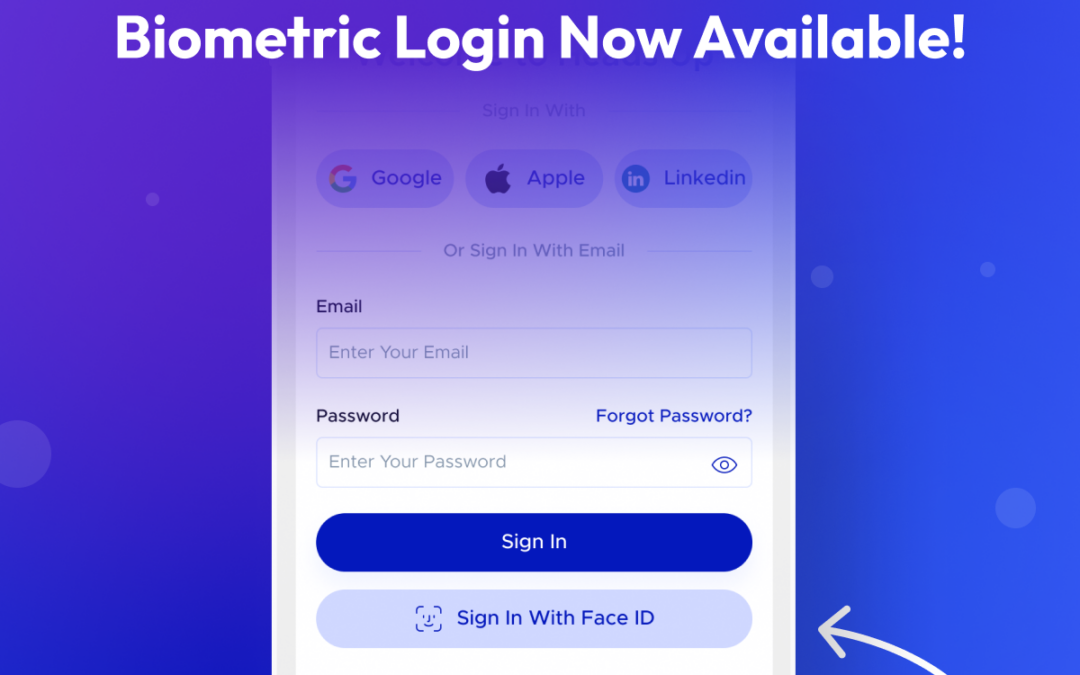
In our 2025.01.00 release, we included an option to enable Biometric Authentication to more easily log in and utilize the Heads Up Health app. Based on the native iOS Face ID and Touch ID features (depending on device), you can now use your finger or face to log into Heads Up Health and forego entering your password.
Enabling
Prerequisite
Before the option to enable Face ID or Touch ID will be presented to you in the Heads Up app, you need to have them enabled on your iPhone. You can find the option to enable in the Face ID [Touch ID] and Passcode section of your iPhone.

In addition, you can manage your Face ID [Touch ID] support outside of the app in the Face ID [Touch ID] and Passcode section by toggling the option in Other Apps section. If this is toggled off, the option to enable Face ID [Touch ID] will not be presented in the Heads Up app.
Initial Log In
If you’re logging into Heads Up for the first time since the 2025.01.00 version was released, you’ll be immediately greeted with a pop-up introducing you to the biometric feature and giving you the option to enable.

This will only show once, and you can enable by selecting “Enable Face ID” (or Touch ID depending on your device), or you can select “Skip” to continue to your Dashboard without enabling.
Note: This screen will only show up once. After its enabled or dismissed, you’ll need to enable from the Setting section of the app.
Settings
You can enable the Face ID [Touch ID] feature any time by going into the Settings section and navigating to Security. From there you’ll see the option to toggle Face ID on or off.


Loging In
Once Face ID [Touch ID] has been enabled, you’ll be able to log in with your devices supported biometric method.
In the Log In screen, you’ll have a new option for Face ID [Touch ID] below the password field.

Tapping on it will trigger the biometric process within your iPhone.

From there you should successfully be logged into your app and can navigate around!
Note: Your iPhone will have a set number of times your Biometrics can fail (typically 5 times) before the feature is turned off. If that happens, you’ll need to log in with your User ID and Password and re-engage the biometric feature from the Setting section of the app.